Beyond the road
Connecting F1 25 and F1 24
Switch UDP telemetry on, pick a format Marque reads, and send it to your phone.
F1 25 and F1 24 send telemetry over the network on their own, with no extra software. Everything you need is in one in-game menu, and there’s one setting on it that people get wrong: the format.
Good to know
Marque reads F1 25, the 2026 Season Pack and F1 24. Each year’s game shifts the data around, so F1 23 and older send packets Marque deliberately ignores rather than mis-reading them.
Set it up
- In Marque, open Record › Record a virtual drive and pick your game. Note the address on screen.
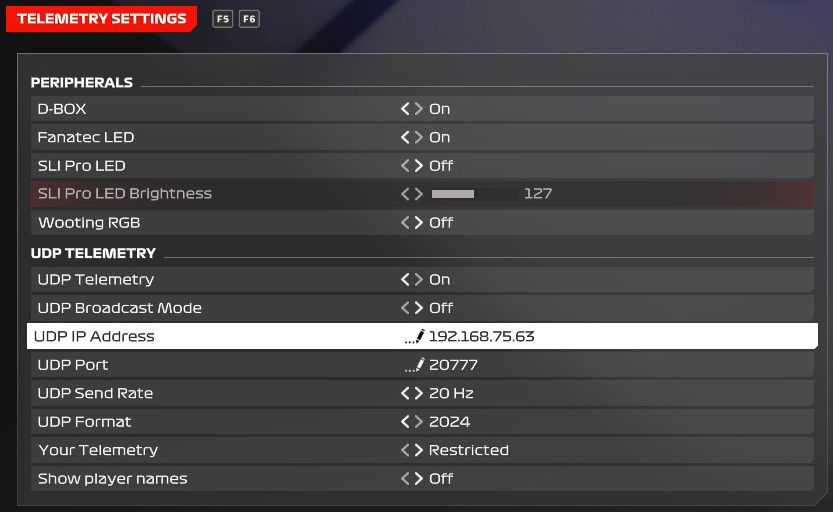
- In the game, open Settings › Telemetry Settings.
- Set UDP Telemetry to On.
- Set UDP Broadcast Mode to Off, then put the Marque address into UDP IP Address.
- Set UDP Port to
20777. - Set UDP Format to
2026if you have the 2026 Season Pack,2025in F1 25 without it, or2024in F1 24. Anything older and nothing will arrive. - Leave UDP Send Rate at
60Hz. Lower works, but the traces get coarse. - Back in Marque, tap Start listening, then head out on track.
Worth knowing
- Broadcast mode is the fallback, not the goal. With it on, the game shouts at the whole network and ignores the address field. It sometimes works, but on a busy network it’s far less reliable than naming your phone directly.
- Marque records your car. The game streams the whole grid; Marque reads only the one you are driving.
- Time trial, race, practice - all fine. Anything where you’re actually driving records.
- Your lap and the circuit come along. The drive draws the line you took and names the track. F1 drives recorded on an older version of the app carry only speed and inputs, so they show no lap.
- Format 2026 brings the new cars’ energy with it. The report charts the battery, when you ran in straight mode and when you used overtake. On format 2025 the game sends a 2026 car as a generic one and leaves all of that out. Older cars show when DRS was open instead.
Tip
Nothing arriving? The checks that fix it - guest Wi-Fi, VPNs, firewalls - are on connecting your racing sim.
Still stuck?
If something here doesn’t match what you see, or you’ve hit a wall, we’d rather hear about it. Email [email protected] and we’ll get back to you.
Browse all help topics