Beyond the road
Connecting your racing sim
Point your sim at your phone and a lap records as a virtual drive. The common setup, a walk-through per title, and what to check when nothing arrives.
Your sim already knows everything about the lap you just drove: throttle, brake, steering, engine speed, where you were on the track. Marque listens for that over your home network and turns it into a virtual drive, with a report just like a real one.
The setup is the same shape for every title: tell the game where your phone is, then tap Start in Marque. What changes per title is where that setting lives, and for Assetto Corsa or iRacing whether the game can send anything at all. This page covers the part they share; pick your title below for the exact taps.
Before you start
- One network. Your phone and whatever is running the game - PC, Xbox, PlayStation - have to be on the same home network. A console on Ethernet and a phone on Wi-Fi is fine, as long as they’re behind the same router.
- Not mobile data. If your phone drops to 4G or is on a guest network, nothing can reach it.
- The app stays open. Marque records the session in the foreground. It keeps the screen awake for you, but switching away ends the session.
The common setup
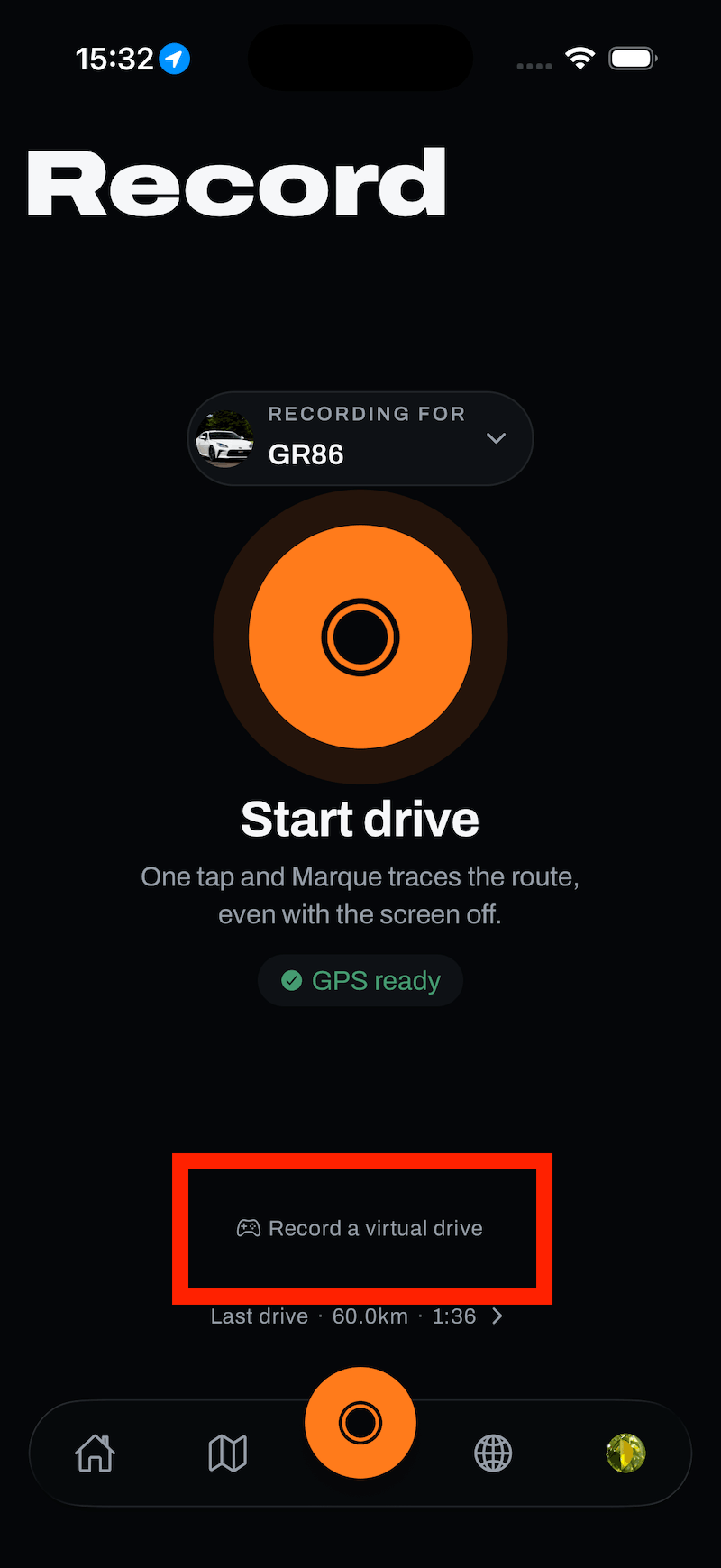
- Open the virtual-drive screen. Go to Record and choose Record a virtual drive.
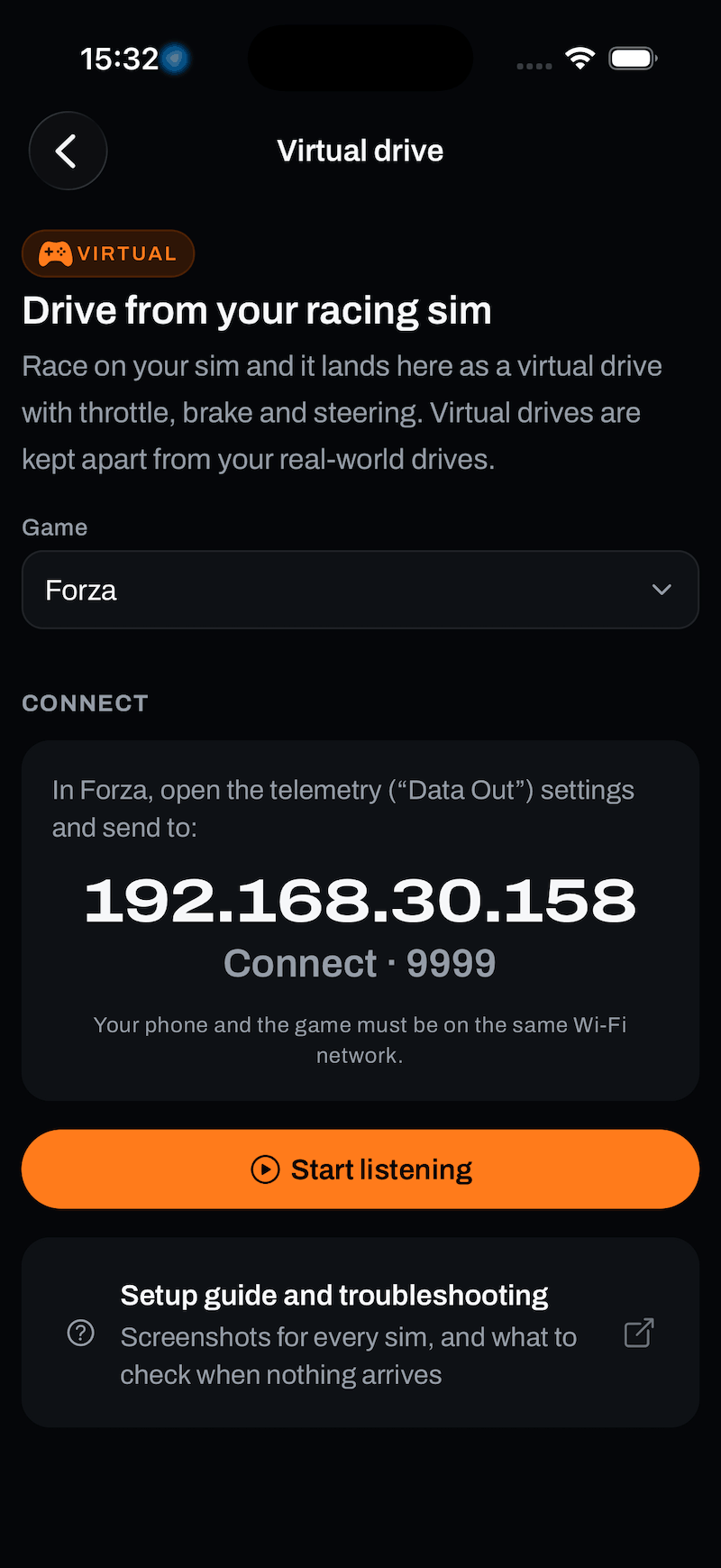
- Pick your sim. Tap the Game row and swipe to your title. The sheet shows that title’s steps and, underneath, the address to send telemetry to.
- Point the game at your phone. This is the per-title part. The address and port shown on that screen go into the game’s telemetry settings. Follow your title below.
- Tap Start listening, then drive. The screen sits on Waiting for telemetry… until the first packet lands, then switches to the live cockpit and starts recording once you’re on track.
- Finish when you’re done. Press and hold Finish, the same as ending a real drive, and you land on the finish screen.
Your title
Forza
Motorsport and Horizon, on Xbox, PlayStation or PC. Set Data Out to your phone.
F1 25 & F1 24
Turn on UDP telemetry, set format 2025 or 2024, and point it at your phone.
Gran Turismo 7
Nothing to turn on in-game - your phone asks the PlayStation for it.
Assetto Corsa & Competizione
Windows PC only. A small bridge app on your PC finds your phone, or asks you where it is.
iRacing
Windows PC only. The same bridge app forwards it - and there’s nothing to switch on in the sim.
What the screen is telling you
- Waiting for telemetry… - nothing has arrived yet. The game isn’t sending, or it’s sending somewhere else.
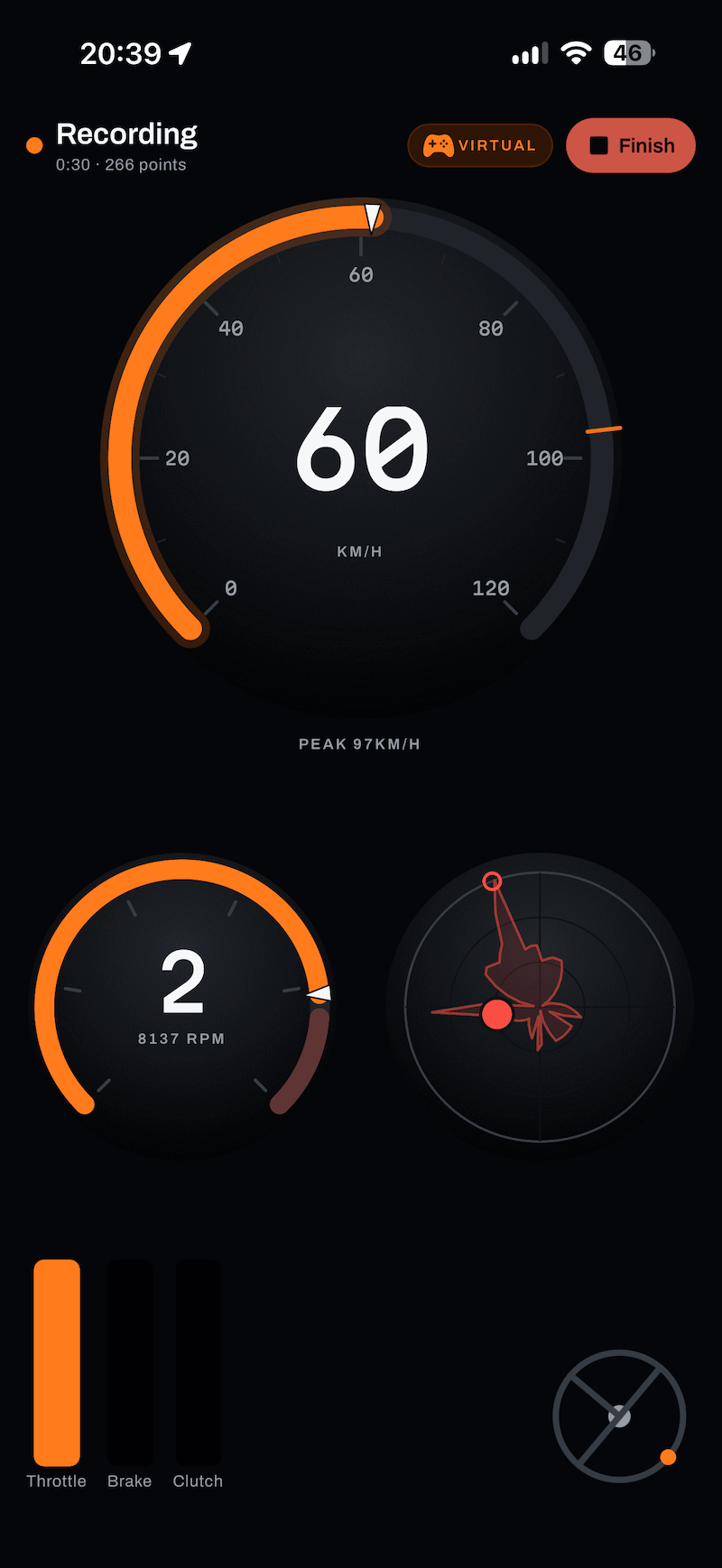
- Recording - packets are arriving and you’re on track. The lap is being captured.
- Paused - packets are still arriving but the game says you’re not driving: a menu, a replay, or a rewind. Recording picks up on its own when you’re back on track.
When nothing arrives
Almost every failure here is the same one wearing a different hat: the packets are going somewhere your phone is not. Work down this list in order.
It sits on “Waiting for telemetry…” forever
- Check the address, digit by digit. Re-read it on the Marque screen rather than trusting the one already typed into the game. Phones get a new address when they rejoin a network.
- Check the port. Each title uses its own: Forza
9999, F120777, Gran Turismo 733739, Assetto Corsa and iRacing9600. Marque shows the right one for the sim you picked. - Same network, really. Many routers run a separate guest Wi-Fi that blocks devices from talking to each other. Put both ends on the main one.
- Turn off any VPN on the phone or the PC. A VPN moves the phone off the local network entirely.
- On PC, let the game through the firewall and set the network profile to Private rather than Public.
“Couldn’t open the connection. The port may be in use.”
Something else on the phone already holds that port. Usually that’s another telemetry or dash app left running in the background. Close it and tap Start again.
“Nothing recorded. No telemetry arrived.”
The session ran but not one packet landed, so there was nothing to save. That’s the same problem as above, so work through the list, and use the game’s own telemetry screen to confirm it’s switched on and not just configured.
It says paused while I am clearly driving
Rewinding drops the game out of its “racing” state for a moment, and Marque follows that rather than guessing. It resumes by itself. If it stays paused for a whole lap, the game is sending menu telemetry. Head back out to the menu and re-enter the session.
Good to know
Tip
Still stuck?
If something here doesn’t match what you see, or you’ve hit a wall, we’d rather hear about it. Email [email protected] and we’ll get back to you.
Browse all help topics