Beyond the road
Connecting Forza
Turn on Data Out, point it at your phone, and your laps land in Marque as virtual drives.
Forza broadcasts its telemetry itself, so there’s nothing to install. You switch on Data Out in the game, type in the address Marque shows you, and that’s the whole setup.
Good to know
Works with Forza Motorsport 7, Forza Motorsport (2023), Forza Horizon 4 and Forza Horizon 5, on Xbox, PlayStation or PC. You don’t have to tell Marque which one you own. It recognises the title from the data itself.
Set it up
- In Marque, open Record › Record a virtual drive and pick Forza. Leave the screen open, because it’s showing the address you’re about to type.
- In Forza, open Settings › HUD and Gameplay and scroll to the bottom, to the Data Out block. (On Motorsport it may read UDP Race Telemetry.)
- Set Data Out to On.
- Set Data Out IP Address to the address on your Marque screen, and Data Out IP Port to
9999. - Back in Marque, tap Start listening, then get on track. The cockpit takes over as soon as the first packet arrives.
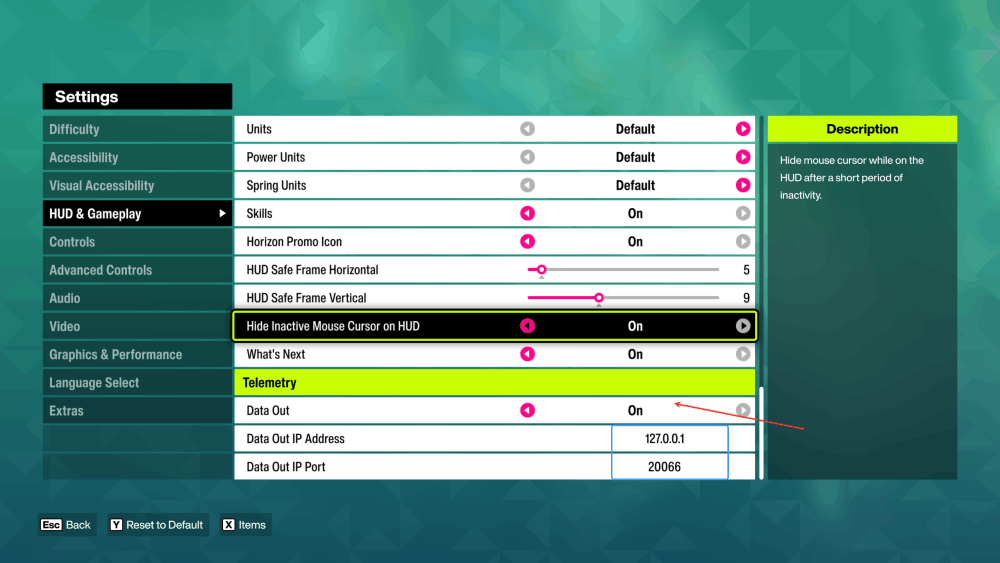
9999; the numbers above are only there to show you which rows they go in.Worth knowing
- On Forza Motorsport 7, pick Car Dash. Its Data Out Packet Format offers “Sled” and “Car Dash”, and Sled carries no speed or pedals, so nothing records. The newer games have only the one format. Marque tells Motorsport and Horizon apart by itself.
- Forza remembers the address, your phone may not. Phones can get a different address when they rejoin Wi-Fi. If a session that worked last week goes quiet, re-read the address in Marque and correct it in the game.
- On console, Data Out is per-profile and survives updates - you only do this once.
- Your car class and turbo boost come along. The class reads the way the game shows it, with its performance number.
Tip
Nothing arriving? The checks that fix it - guest Wi-Fi, VPNs, firewalls - are on connecting your racing sim.
Still stuck?
If something here doesn’t match what you see, or you’ve hit a wall, we’d rather hear about it. Email [email protected] and we’ll get back to you.
Browse all help topics